Print a workbook from Word or Google Docs
You can print a workbook from Word or Google Docs without design software. Start from our free Word template, or set letter-size pages with room for the coil, then save a PDF and upload it. After you approve a proof, we print, bind and ship 10 to 100 copies.
Pick a format
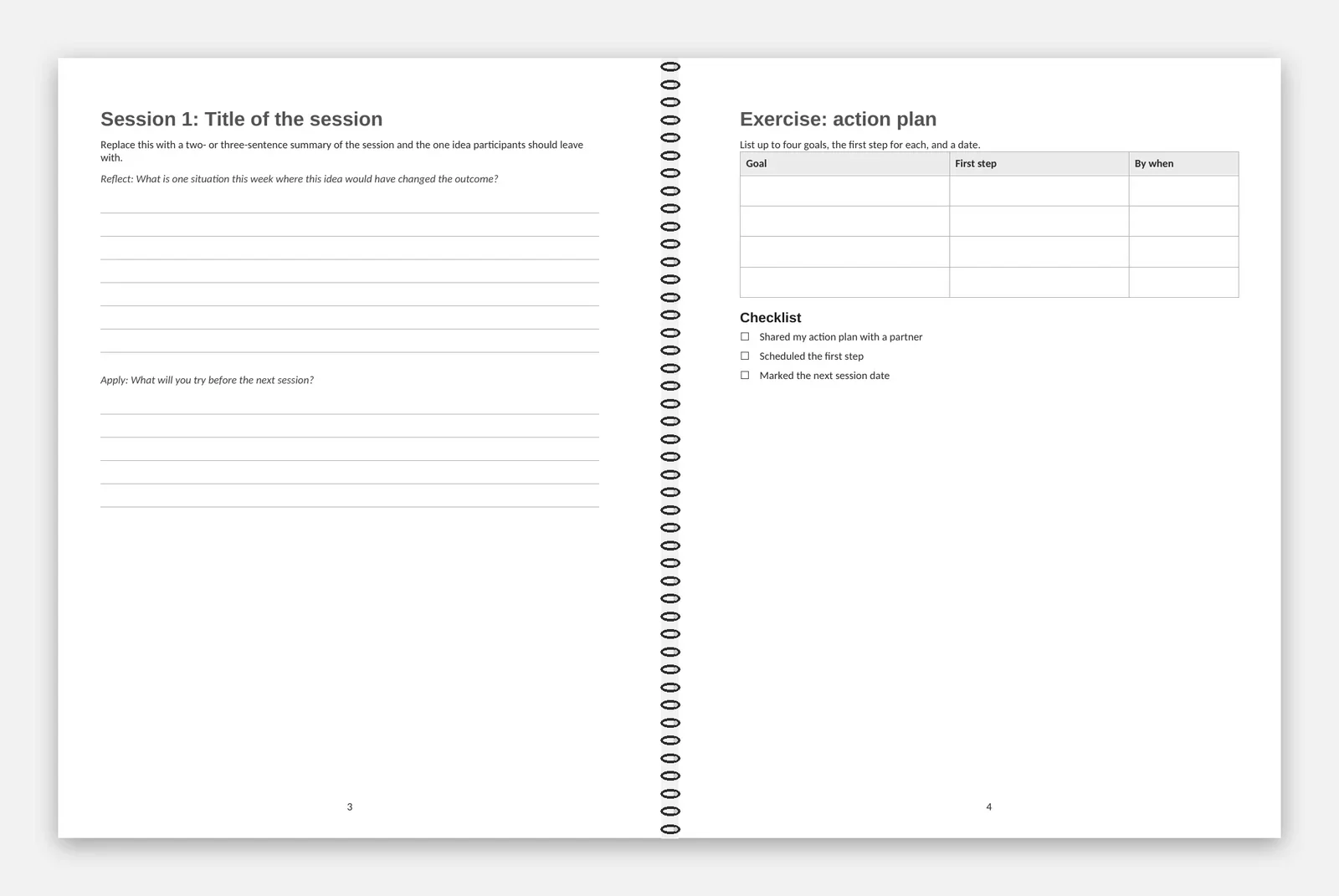
Pick by page count and ink: a coil workbook holds up to 48 interior pages, and a stapled booklet holds 8, 12 or 16.
| Format | Pages | 25 copies | 50 copies |
|---|---|---|---|
| Black-and-white coil workbook, 8.5 x 11 in | Up to 48 interior pages, color front cover | $299 ($11.96 each) | $529 ($10.58 each) |
| Color coil workbook, 8.5 x 11 in | Up to 48 full-color interior pages | $369 ($14.76 each) | $649 ($12.98 each) |
| Letter booklet, 8.5 x 11 in | 8, 12 or 16, cover included | $169 ($6.76 each) | $249 ($4.98 each) |
| Small booklet, 5.5 x 8.5 in | 8, 12 or 16, cover included | $119 ($4.76 each) | $169 ($3.38 each) |
Text, tables and writing lines suit black and white. Color photos and color-coded charts need the color book. Compare both coil books on the workbooks page, or see both booklet sizes.
Order any whole quantity from 10 to 100; prices between tiers are in proportion. Boxes are included, and the price calculator adds postage at cost for your ZIP code.
Set up the file in Word
Start from our Word template. It has letter pages, mirrored margins for the coil, heading styles and writing lines, with the cover on page 1.
- Start from Coil workbook template, 8.5 x 11 in (Word) (DOCX), or set Layout > Size > Letter (8.5 x 11 in).
- For coil binding, open Layout > Margins > Custom Margins and choose Mirror margins.
- Set Inside to 0.875 in and the other margins to at least 0.6 in.
- Keep everything inside the margins. Word files don't need bleed.
- Make page 1 the front cover. It prints in full color on 80 lb cover stock. Leave the back cover out, because it is blank.
- Save with File > Save As > PDF. On Windows, choose Standard (publishing online and printing). On a Mac, choose the option for printing.
Using photos? In Word for Windows, open File > Options > Advanced and tick Do not compress images in file. Aim for 300 ppi at the printed size.
Set up the file in Google Docs
Google Docs can't mirror margins, so give both sides room for the coil.
- Open File > Page setup. Choose Pages, not Pageless, and set the paper size to Letter.
- Set the left and right margins to at least 0.75 in, and keep everything inside them.
- Make page 1 the front cover, then add the interior pages in reading order.
- Download with File > Download > PDF document (.pdf).
For the 5.5 x 8.5 in booklet, choose Statement (5.5 x 8.5 in) as the paper size in Page setup, or use our Word template. Google Docs has no bleed setting, so keep colors and photos inside the margins. Built your pages in Canva instead? See how to print a Canva workbook.
Booklets from Word
Set the page size to the finished size and make the page count 8, 12 or 16. Don't use Word's Book fold setting: send single pages in reading order, and we arrange them for folding.
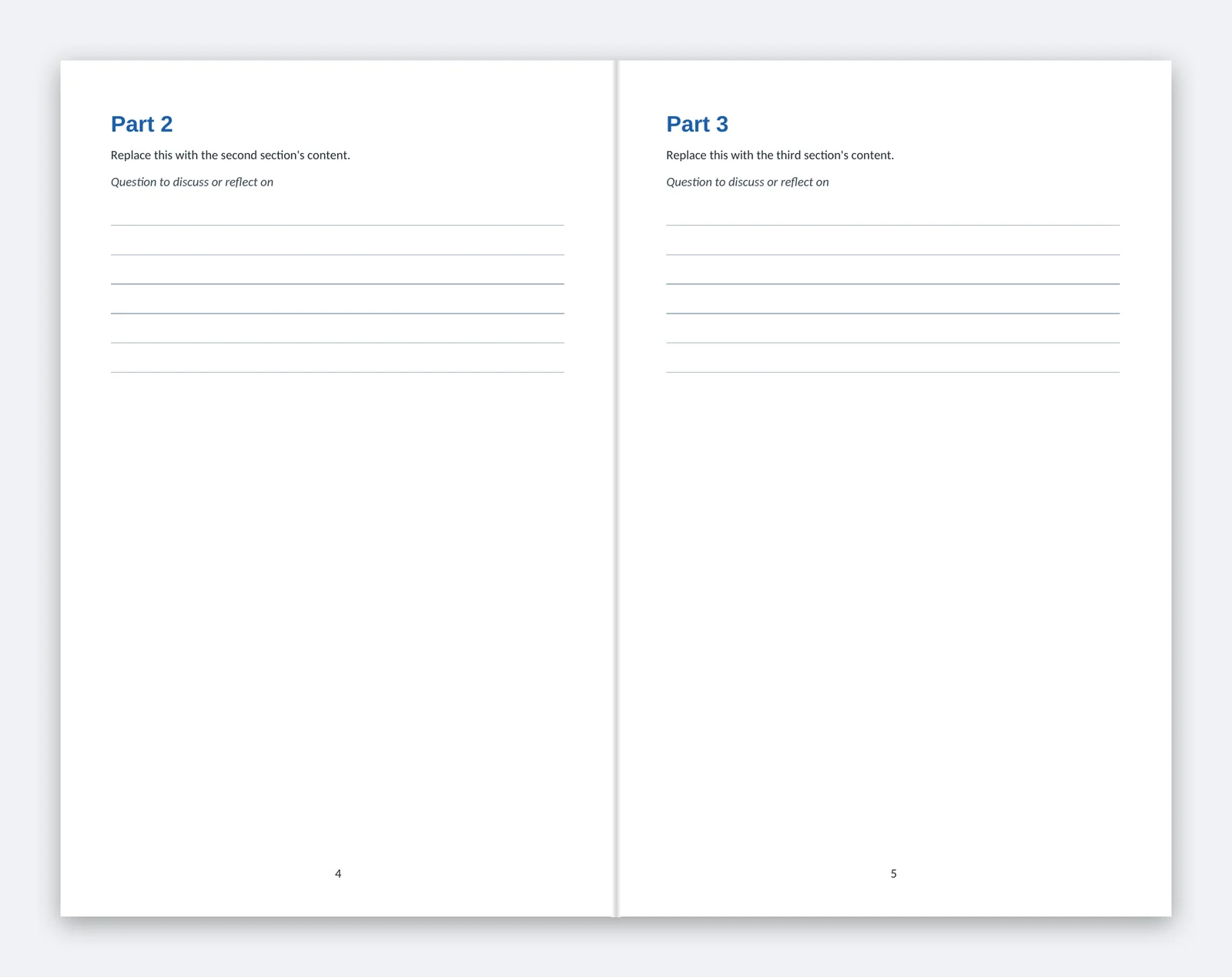
Our templates are set up already: Booklet template, 8.5 x 11 in (Word) (DOCX) and Booklet template, 5.5 x 8.5 in (Word) (DOCX). Page 1 is the front cover and the last page is the back cover. Add or remove pages four at a time, and keep text 0.25 in inside the trim. Every template is on the free templates page.
Check the PDF before you upload
Check the PDF itself, because that is the file we proof and print.
- Count the pages: the cover plus up to 48 for coil, or exactly 8, 12 or 16 for a booklet.
- Check the page size: 8.5 x 11 in, or 5.5 x 8.5 in for the small booklet.
- Zoom in on photos at 100 percent. Blurry on screen means blurry on paper.
- Read every name, date and phone number one more time.
Timeline: work back from your session
Count back from the day of your session: proof, production, then ground transit.
- Upload: we check size, page count, fonts and image resolution.
- Proof: you get it the same business day we receive a complete file. Approve it or ask for one round of changes.
- Production: 1 to 3 business days after approval and payment.
- Transit: USPS Ground Advantage. Time in transit depends on the distance to the delivery ZIP code.
We ship each order to one address, such as the venue or your office. Give us the name of the person who receives packages there. Shipping to several addresses is a custom quote.
Reorders when the content changes
We keep your approved file. Before each reorder, you confirm it is still current. If the content changed, edit your Word or Docs file, save a new PDF and upload it for a new proof.
Questions
Can I send the Word or Docs file instead of a PDF?
Will my fonts change?
What happens to color images in a black-and-white workbook?
Do you add page numbers?
How large can my PDF be?
Printed and shipped by Charlotte Print in Charlotte, North Carolina.